
1. Log into Engage
- Use your credentials to log in to the Engage platform.
- Click on the Administration tab in the left-hand menu
- Select Team Users from the drop down menu
.png?width=670&height=375&name=How%20to%20Add%20a%20New%20User%20in%20Engage%20Admin%20Portal%20-%20Step%203%20(1).png)
3. Add a New User
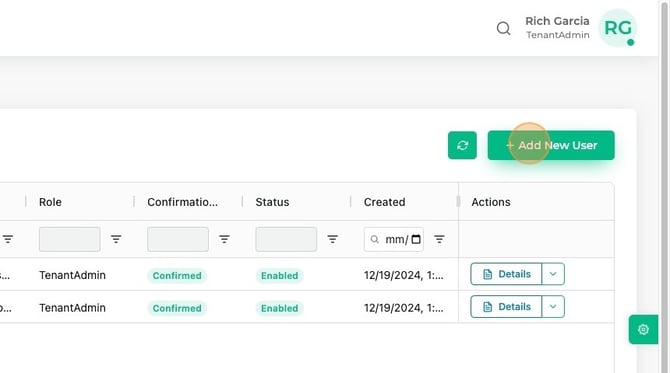
- Click on the +Add New User button in the upper right corner of the screen
4. Fill out the User Form
- Username: It is recommended but not required to use an email address to make logging in easy.
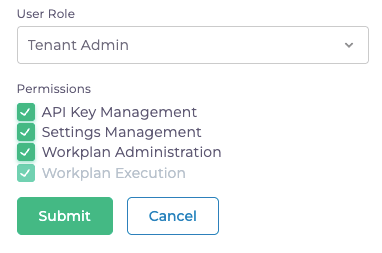
- Role: Currently, the only available role option is Tenant Admin.
- Permissions: Only the first Tenant Admin may grant additional permissions. They can check the boxes under “Permissions” to allow access to the following:
- API Key Management: Allows access to the API Access tab, and ability to create and manage API keys if enabled.
- Settings Management: Ability to edit the default Installation Settings.
- Workplan Administration: Ability to create, review, and approve Workplans, and create Workplan tasks through the account's detail page.
- Workplan Execution: Ability to complete and submit Workplans for review, and create Workplans to self-assign any unassigned Workplan tasks. Auto-enabled with the Workplan Administration permission.
5. Submit the Form
- After filling in the form, click the Submit button to save your changes.
- The new user will receive an email with instructions on how to log in to Engage. Ensure they check their inbox and follow the provided instructions.