
Walk-by planning is done through the Workplans module. For a full walkthrough of the Workplans process, review the full support article.
Create and assign the Workplan
To create a Workplan and assign tasks, the user must have the Workplan Administration permission enabled by the Primary Administrator.
- Open the Account requiring a manual read.
- Select the three dots “...” under the refresh button, and select Manual Read.
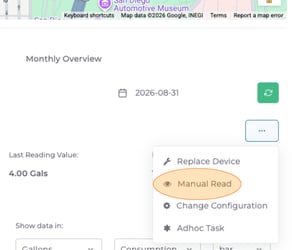
- In the popup window, either select an existing Workplan, or create a new Workplan.
- Repeat for all Accounts.
- Navigate to the Workplans module to rearrange and assign the Workplan to an operator or field technician.
- Select Start Workplan in the upper right to send the Workplan to the mobile application.
Complete with your mobile device
To complete a Workplan, the user must have the Workplan Execution permission enabled by the Primary Administrator. This permission is automatically granted for those with the Workplan Administration permission.
- Locate the Workplan for the manual read(s): In the mobile app, users can view the workplans assigned to them on their home screen. All workplans can be found in the Workplans tab.
- Open the Workplan, and view the tasks associated.
- Enable Passive Walk-by to have the mobile device start scanning for Subeca devices.
- Proceed the route of the reads.
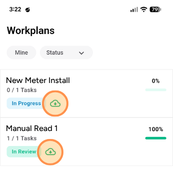
- When all reads are completed, the technician can submit the workplan for review by clicking the upload button. This updates the status of the tasks and changes the status of the workplan to In Review.
Tip: Going to an area with inconsistent internet? Download your tasks, and the data will sync when you’re back in range.
Finishing the Workplan on Engage Web
- Once a Workplan is sent for review, it is available to review on the Engage web platform.
- The supervisor or technician should review the task results and notes, and click Complete Workplan when done reviewing.