
What is a Workplan?
A Workplan is a task or set of tasks to be completed in the field. Typical workplanning includes device installation, taking manual reads, changing the configuration of a device, or other ad hoc tasks. Multiple work types can be included on a single Workplan.
Creating a Workplan on Engage Web
To create a Workplan, the user must have the Workplan Administration permission enabled by the Primary Administrator.
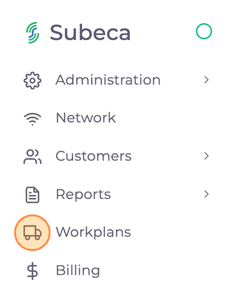
- Click Workplans on the left hand navigation.
- Select New Workplan to create a new plan.
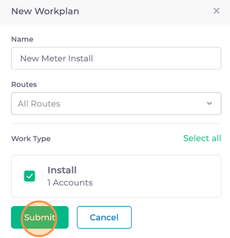
- Enter a descriptive Name for the Workplan.
- If known, you can select the Route or relevant Work Type for the plan you are creating. Work Types can be manually generated from the Account page, but are also automatically generated based on missing reads and uninstalled devices.
- When complete, click Submit to create the top-level Workplan.
- In the list view, find the new Workplan and click Details in the rightmost column to open the plan.
- Select Add Tasks to add tasks to the plan, and select the Route and Work Type that match the task.
- As needed, add additional tasks to the plan. Based on the Account selection, the tasks will be mapped in the display. Tasks can be reordered by dragging and dropping.
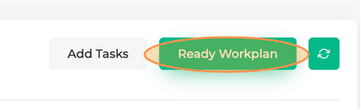
- When task planning is complete, select Ready Workplan to assign to an operator or field technician. The user must have an Engage account to be assigned to a Workplan.
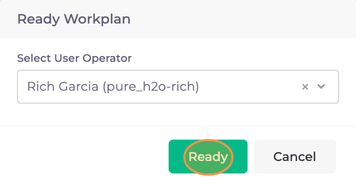
- Select Ready to assign the Workplan. This is the last stage when changes can be made to the Workplan.
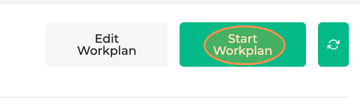
- Select Start Workplan in the upper right to send the Workplan to the mobile application.
Completing Workplan Tasks on Engage Mobile
To complete a Workplan, the user must have the Workplan Execution permission enabled by the Primary Administrator. This permission is automatically granted for those with the Workplan Administration permission.
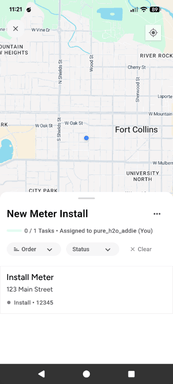
- In the mobile app, users can view the Workplans assigned to them on their home screen. All Workplans can be found in the Workplans tab.
- Based on the Work Type, the app will guide the technician through the task(s) that need to be completed, such as a device install or manual read.
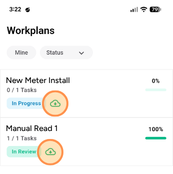
- When all tasks are completed, the technician can submit the Workplan for review by clicking the upload button. This updates the status of the tasks and changes the status of the Workplan to In Review.
.png?width=173&height=384&name=Images%20for%20KB%20-%20Workplans%20(1).png)
Tip: Going to an area with inconsistent internet? Download your tasks, and the data will sync when you’re back in range.
Finishing a Workplan on Engage Web
- Once a Workplan is sent for review, it is available to review on the Engage web platform.
- The supervisor or technician should review the task results and notes, and click Complete Workplan when done reviewing.
Example Workplan: Manual Read
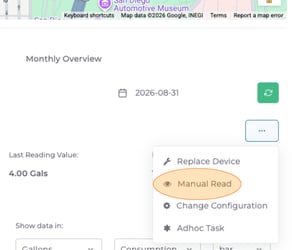
- Create the Workplan task, and add to a Workplan: On the Account page for the meter(s) requiring manual reads, click the three dots under the map and refresh button.
- Repeat process for all meters on this route requiring manual reads.
- Review the Workplan: Navigate to Workplans, and click Details to view the Workplan tasks. Rearrange as needed to plan the route.
- Assign and start the Workplan: Click Ready Workplan, select the field technician to assign, and click Start Workplan to send to their device.
- Complete the Workplan tasks in the mobile app: Open Workplan in mobile app, follow manual or walk-by read steps, then mark Workplan complete.
- Final review and signoff: Back on the web platform, review data collected, and mark complete.
Workplans FAQ
Can I reorder Workplan tasks after creating?
Yes! Workplan tasks can be reordered or modified until the Workplan is started and sent to field technicians.
Can I reassign a Workplan after sending to the mobile app?
No. Once a Workplan is started in the Engage web platform, no changes can be made to the plan, tasks, or assigned team members.
Can I copy a Workplan?
No. Workplans cannot be cloned or duplicated at this time.
Can I delete a Workplan?
No. Workplans cannot be deleted at this time.
Can everyone view and complete a Workplan?
Workplans in the Draft and Ready stages are viewable by anyone within the account, but Workplans can only be completed by the assigned individual.
How do I make a certain Work Type appear in the list to select from?
From the Account page, Workplan tasks can be created and added to an existing or new Workplan. Examples include Replace Device, Manual Read, Change Configuration, or Adhoc Task. When created from the Account page, the task(s) will automatically be associated with the Account’s details and location.
What do the statuses of a Workplan mean?
-
Draft: Workplan has been created, and is able to have tasks added and modified.
-
Ready: Workplan has been assigned to a field technician, and is ready to send to their device.
-
In Progress: Workplan has been marked as “Started” and sent to a field technician’s device.
-
In Review: Workplan tasks have been completed, and the Workplan has been sent back to the web platform for final review.
-
Completed: Associated tasks were completed, and the Workplan was reviewed.